- Go to connect.neoom.com and log in with your user ID (e-mail address).
- Click on
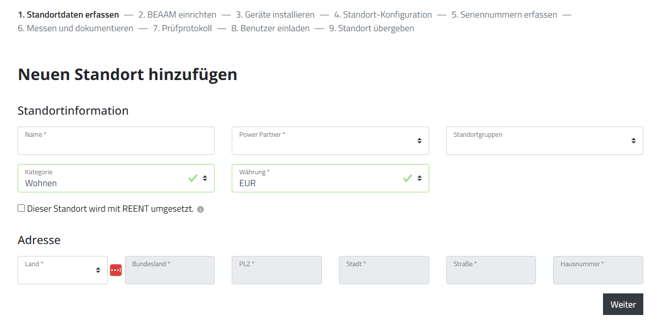
- Fill in the fields and click "Save"
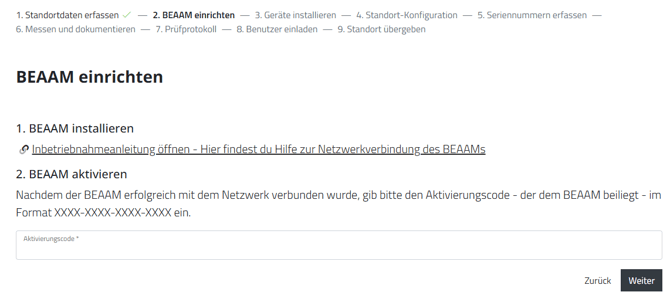
- On the page that now appears, enter the BEAAM activation code and click "Next". You can find the BEAAM activation code in the BEAAM box.
If the BEAAM activation was successful, you should see the following message: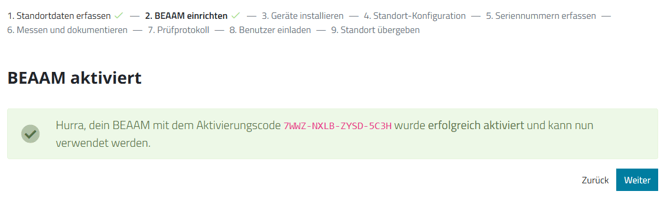
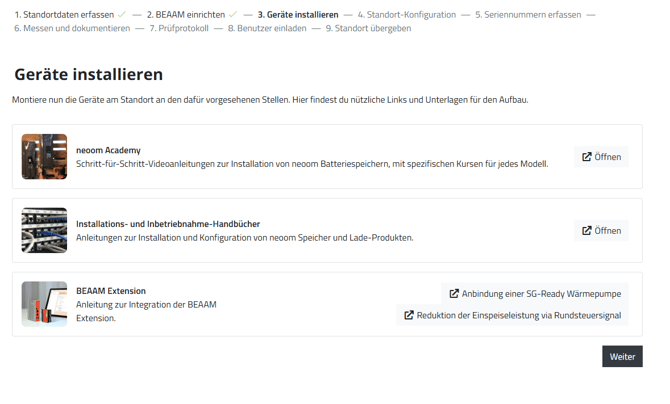
- Here you'll find further information. If it is not relevant to you, click "Next".
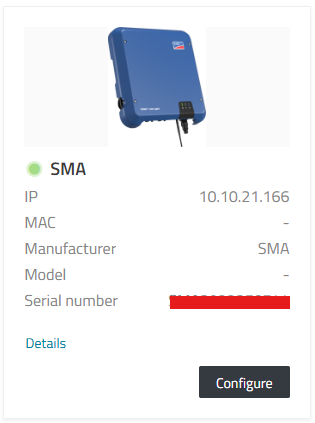
- On the following page, click "Scan network". After a few seconds, all devices found on the network will appear here. Select the device you want to configure and click "Configure"

- Follow the device-specific guide to configure the device.
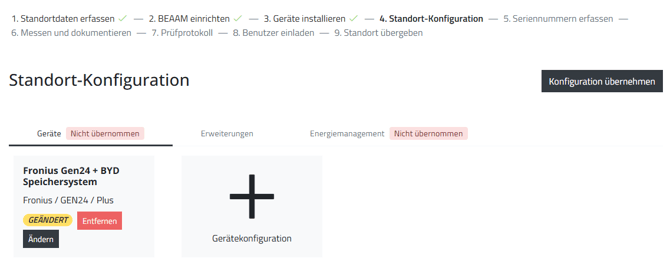
- Once you have completed the configuration by clicking "Save", click "Apply configuration" on the page that now appears
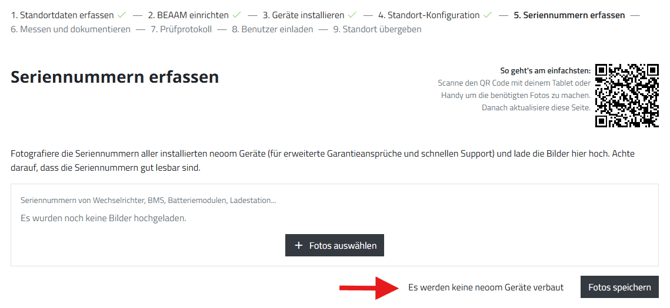
- Here you can record the serial numbers of the installed devices. This step is optional. If you don't want to do this, click "No neoom devices are installed"
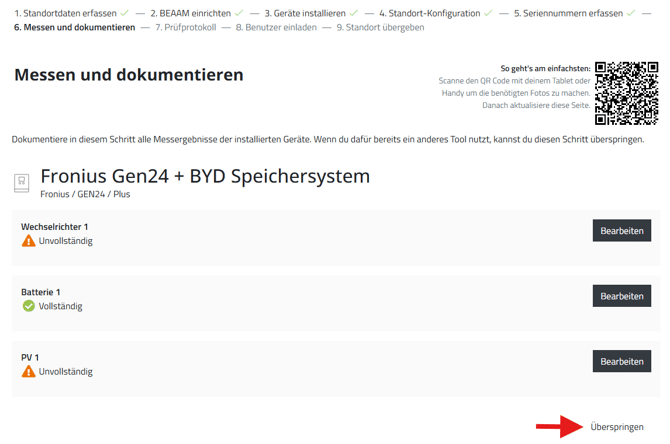
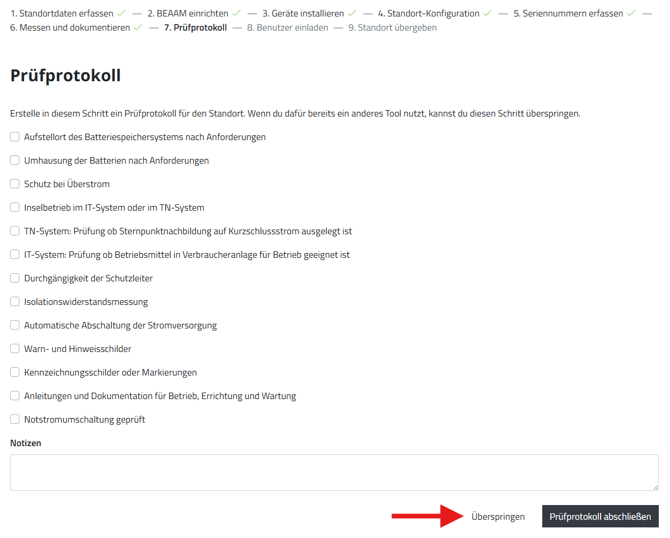
- Here you can optionally document measurements and configurations. This step is optional and can be skipped.
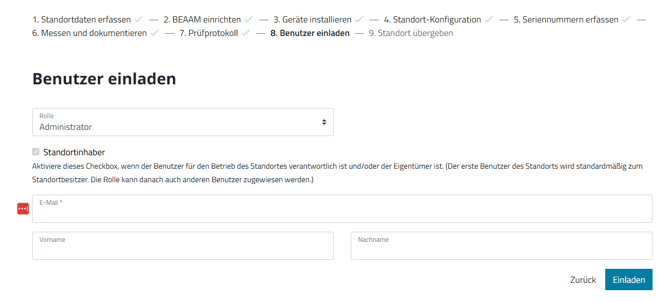
- Now invite the customer as user and site owner of the neoom BEAAM energy manager site by entering the customer's e-mail address and name.
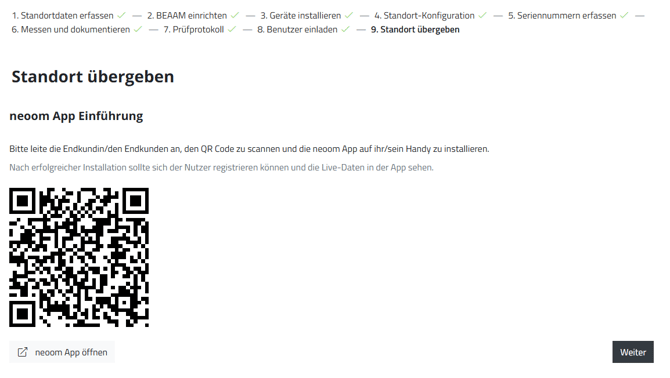
- Ask the customer to download the neoom app from the App Store. The easiest way to do this is for the customer to scan the QR code that now appears.
- The customer needs a neoom subscription in order to use the BEAAM energy manager with their Fronius storage system.
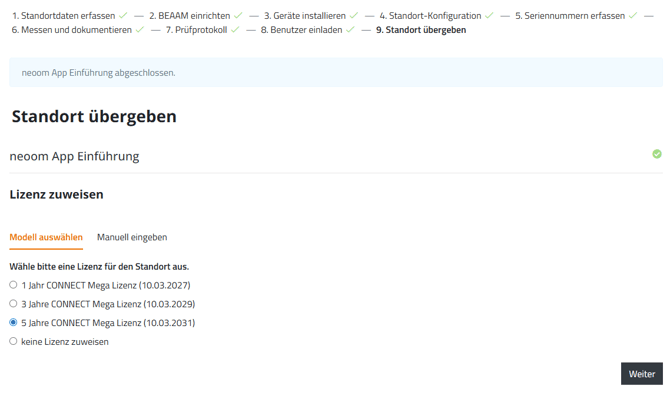
On the following page, you can assign the customer a license you have already purchased from neoom in advance (1, 3, or 5-year license).
Alternatively, you can select "Do not assign a license", in which case the customer can purchase the license themselves through the app using a credit card.
If you want to assign the customer a specific license code you purchased from neoom, select "Enter manually" to enter this license code. - On the page that now appears, click "Transfer site"
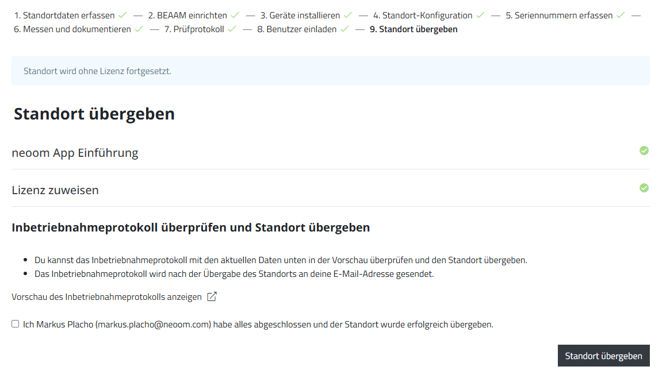
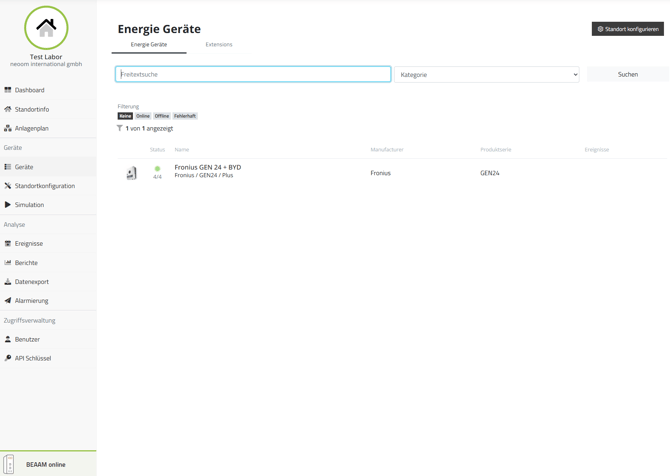
- You will now see the overview page of the newly created BEAAM energy manager site.
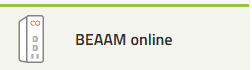
- Here, in the bottom-left corner of the screen, you should see the "BEAAM online" message:
- Now check whether the Fronius storage system is detected by the BEAAM energy manager.
To do this, click "Devices" in the left-hand menu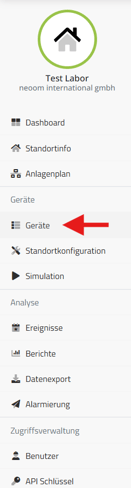
and check that the status indicator is green for all previously configured components.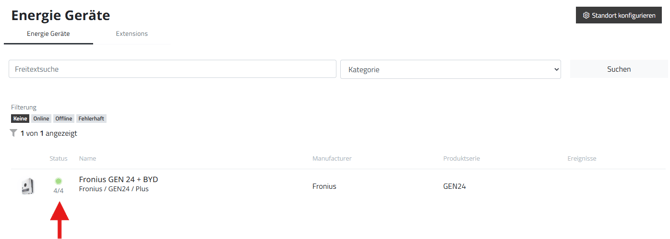
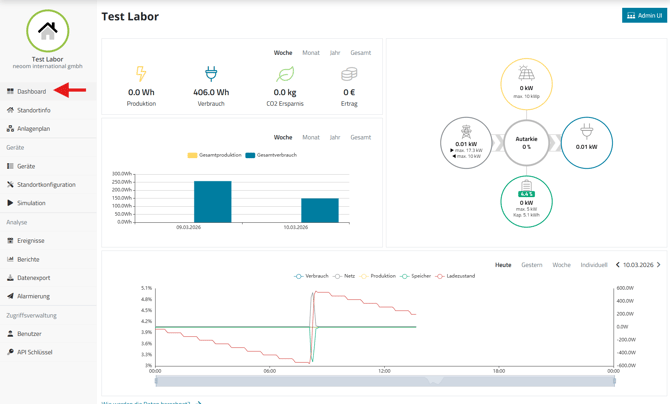
- If everything shows green and the battery system is switched on, you can already see the first data the BEAAM is receiving from the Fronius system in the dashboard.
- In the meantime, the customer should also have installed the neoom app and logged in.
Ask the customer to open the app on their device and explain the features to them as described in the following chapter.
English
