Before you drive to the customer's site to carry out the installation:
Relevant for the Solax X3 Hybrid G4 and X1 Hybrid G4:
- The correct dongle:
- The inverter can only be controlled with one of the following dongles:
- Pocket WIFI+LAN 4.0
- Pocket WIFI+LAN 2.0
- Pocket WIFI 3.0
- Make sure one of these 3 dongles is installed.
The dongle is located on the underside of the inverter and is labeled with the dongle type:
- The Pocket LAN V3.0 dongle (a LAN-only dongle) does not work. It cannot establish a stable connection to the inverter.

- If an incompatible dongle is installed, it must be replaced first.
- The inverter can only be controlled with one of the following dongles:
- The correct firmware on the inverter:
- Communication between the BEAAM and the inverter only works from a certain inverter firmware version onward.
- Make sure that no firmware older than the following is installed:
- Solax X1 Hybrid G4:
- ARM: 1.54-1.05
- DSP: 1.55
- Solax X3 Hybrid G4:
- ARM: 4.55-1.05
- DSP: 4.75
- Solax X1 Hybrid G4:
- Unfortunately, the inverter's firmware version is not always displayed correctly on the inverter's display. It can only be reliably checked via the Solax app with a Solax installation partner account.
- To check the currently installed firmware version and update it if necessary, you have 2 options:
- Contact the installation partner who installed the inverter at the customer's site and who is registered in the Solax database for this specific customer inverter.
- If that is not possible, ask the customer to scan the dongle's QR code. This encodes the serial number. With this serial number, neoom can check the inverter's firmware. To do this, contact xxxxx (tbd)
Before you carry out the BEAAM connection at the customer's site:
- The inverter is correctly installed, configured, and already in operation or ready for operation.

Should this condition not be met, you can find manufacturer-specific information here: https://www.solaxpower.com/downloads.html - Make sure the inverter is online. The best way to check this is to ask the customer to open the SOLAX app and check whether current inverter data is being displayed there.
- If the inverter is online, you can start connecting it to the BEAAM.
Step 1: Determine the IP address of the inverter
- Go to connect.neoom.com, log in with your credentials, and select the customer site from the site overview page.
- Select "Site configuration" and click "Network scan".
- After a few seconds, a tile should appear for every device found, including a tile for the SOLAX inverter:

- This tile shows the IP address of the inverter.
Step 2: Configure the inverter in neoom Ai
- Click "Configure" to integrate the inverter into neoom Ai.
- Select the correct device model. (Solax X1 Hybrid G4, Solax X3 Hybrid G4, Solax X3 Hybrid G2)

- The IP address, port number, and unit ID should already be pre-filled.

- Add the "Inverter", "Battery", "PV", and "AC power meter" components, and fill in the correct values according to the configuration at the customer's site. To do this, click "Add new component" for each one.


- Important: Click "Apply configuration"
Step 3: Check whether the configuration was successful
Go to "Devices" in connect.neoom.com.
At the latest 2–3 minutes after clicking "Apply configuration" in Step 2, the inverter you just configured should be shown there as ONLINE (green dot).

Click on the device's name next to the green dot.
If the active power shown here is 0, even though the sun is currently shining and PV power is being produced, this is due to outdated firmware. See the first section of this article on the topic "Firmware".

If the inverter is online (green dot) and the active power is shown as 0 as described above, you can check the inverter's current firmware in the "Info" tab:


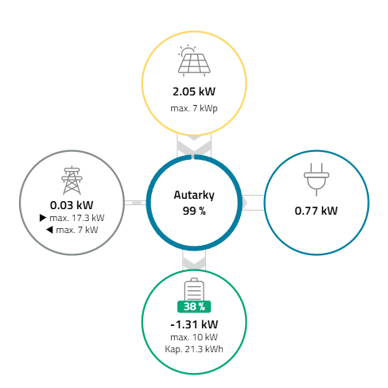
Also check that connect.neoom.com's "Dashboard" section correctly shows the energy flow to/from the PV system.