Prerequisite:
- The inverter is correctly installed, configured, and already in operation or ready for operation.
Should this condition not be met, you can find manufacturer-specific information here: https://manuals.sma.de/STPxx3SE40/en-US/index.html - The access password for your SMA Sunny Tripower — or, if you don't know it, the SMA Sunny Tripower user manual, since the WPA2-PSK key you need to reset the password is noted there.
- A neoom Ai site has already been created for the customer, and the BEAAM is online.
Follow this link for a guide on how to create a CONNECT site and put the BEAAM energy manager into operation:
https://wissen.neoom.com/anlegen-eines-neuen-neoom-ai-standortes-
Step 1: Determine the IP address of the inverter
- Go to connect.neoom.com, log in with your credentials, and select the customer site from the site overview page.
- Select "Site configuration" and click "Network scan".
- After a few seconds, a tile should appear for every device found, including a tile for the SMA Sunny Tripower:
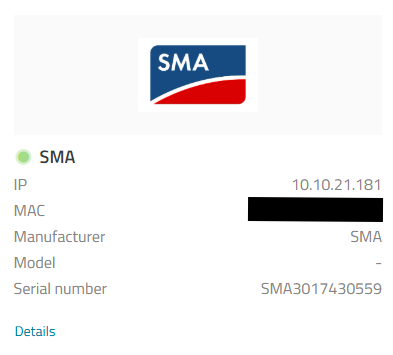
- This tile shows the IP address of the inverter.
- Important: Do not click "Configure" yet to integrate the inverter into neoom Ai. A configuration change first needs to be made on the inverter itself (Step 2). Leave this browser window open, though, as you'll still need it for Step 3.
Step 2: Connect to the inverter
- Open an internet browser and enter the inverter's IP address (determined in Step 1) into the address bar. The following login screen should appear:
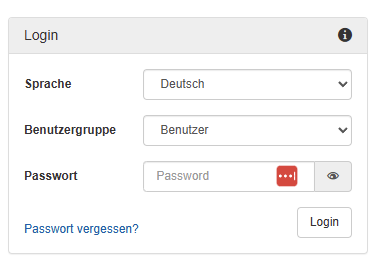
- If you don't know the inverter's password, use the "Forgot password" / "Reset password" function.
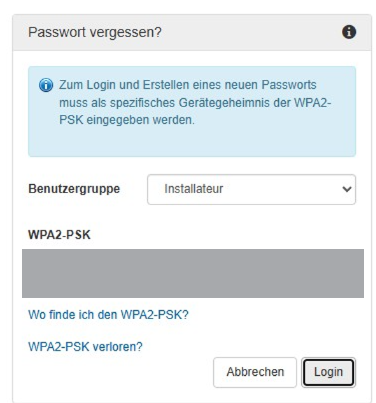
- IMPORTANT:
If you don't see an option to enter the WPA2-PSK in the "Forgot password" dialog (see image above), this means the inverter has old firmware installed.
In this case, please contact the installation company that originally commissioned the inverter for you, and ask them either to give you the user login credentials for the inverter so that you can carry out the firmware update yourself, or to carry out the firmware update for you.
You can find the firmware itself as well as the instructions in the SMA download area:
https://my.sma-service.com/s/article/Perform-a-Firmware-Update-for-Sunny-Tripower-Smart-Energy?language=en_US
https://www.sma.de/en/service/downloads
Please note that if the installed firmware is older than V 3.06.18, the firmware update must be carried out in 2 steps: first install firmware V3.06.18, then install the latest firmware.
The firmware download package on the SMA website usually contains both firmware files (.up2 files) in a ZIP file.
- To set a new password, you need the so-called WPA2-PSK.
You'll find this on the back cover of your SMA Sunny Tripower user manual, which looks like this: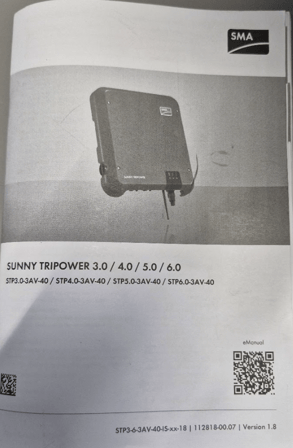
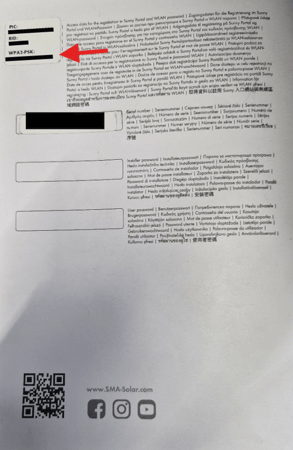
Follow the steps to set a new password. - After successfully logging in to the inverter, you should be taken to a page that shows the following navigation bar at the top:

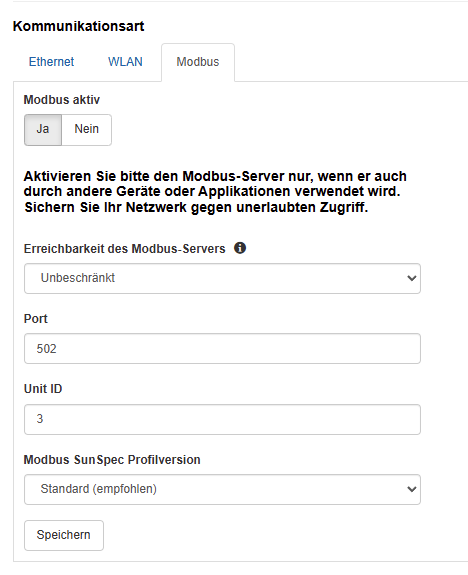
Select "Device configuration" here, then open the "Modbus" tab under "Type of communication". - Set the "Modbus Active" switch to "YES" and save the setting.
Step 3: Configure the inverter in neoom Ai
- Click "Configure" on the tile that appeared in Step 1
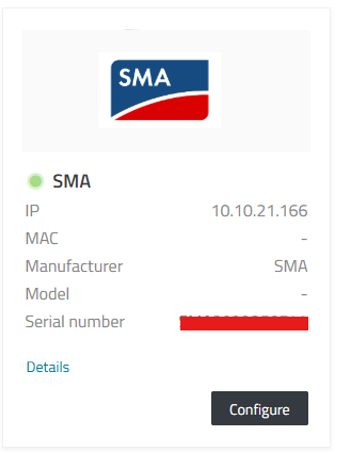
- Click "Configure" to integrate the inverter into neoom Ai.
- Select the correct device model. (SMA Sunny Tripower Smart Energy (hybrid))
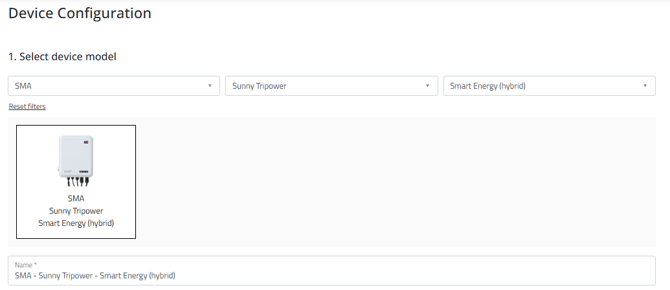
- The IP address, port number, and unit ID should already be pre-filled.

- Add the "Inverter", "Battery", "PV", and "AC power meter" components, and fill in the correct values according to the configuration at the customer's site. To do this, click "Add new component" for each one.
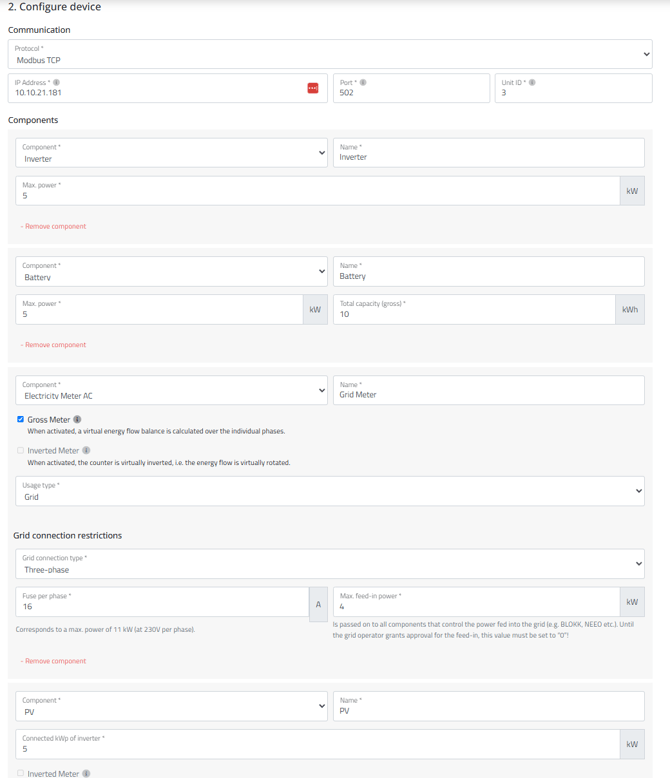
- Important: On the following page, click "Apply configuration"

Step 4: Check whether the configuration was successful
Go to "Devices" in connect.neoom.com.
At the latest 2–3 minutes after clicking "Apply configuration" in Step 3, the inverter you just configured should be shown there as ONLINE (green dot). Click on the device's name next to the green dot.
On the page that now appears, click "Info" in the horizontal navigation menu:
then go to "State" or "Status" in the horizontal navigation menu. If everything worked correctly and the inverter is currently active, you should see values displayed here: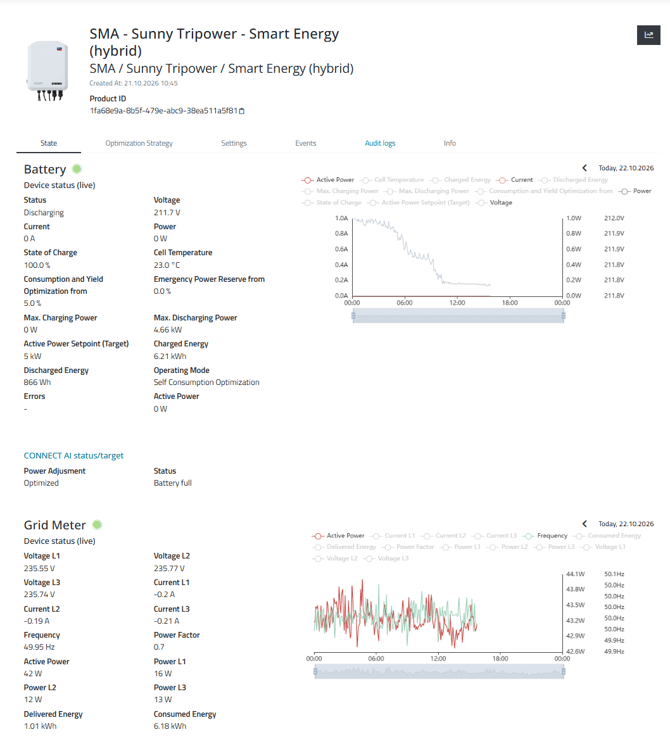
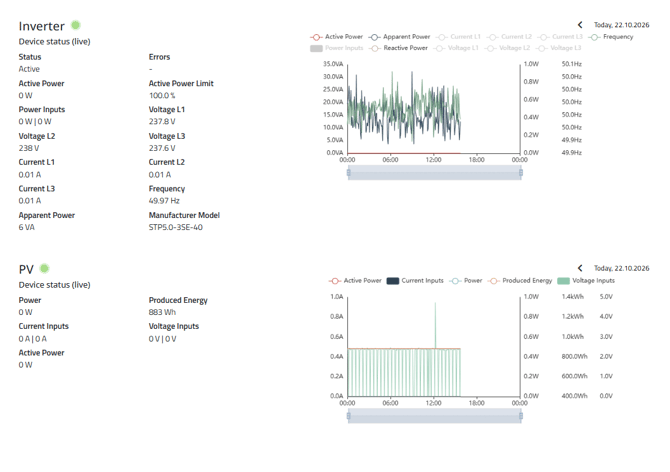
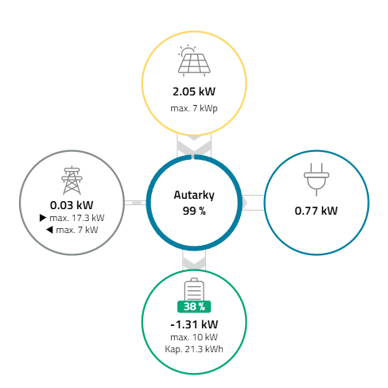
Also check that connect.neoom.com's "Dashboard" section correctly shows the energy flow to/from the PV system, to/from the battery, and to/from the grid.