
CONTENTS:
- Commissioning a BEAAM (for system partners)
- Troubleshooting Help with troubleshooting when an already installed BEAAM suddenly stops working
INTRODUCTION
neoom Ai is our smart energy management. It helps our customers save on electricity costs by optimizing consumption of self-generated power. It also provides full transparency on electricity consumption and production as well as on the correct function of all components, and controls devices such as charging stations, storage, heat pumps, heating rods and more. For this you need our core component, the neoom BEAAM.
In the following guide we walk you step by step through commissioning at your customer's site.
ATTENTION: The following steps may only be carried out by qualified electricians.
Please check the package contents before commissioning and report any complaints to your supplier immediately.
The package is delivered with the following components:
- BEAAM
- Power supply with EU plug
- DIN rail mounting including 2 screws
- Leaflet with link/QR code to the guide
COMMISSIONING
Tips before commissioning
a. Read the guide fully before you start commissioning. At the end you will also find an overview for resolving possible errors.
b. Connect the WAN port of the BEAAM to a router with an Ethernet cable before commissioning to establish an internet connection for the BEAAM. Also connect the power supply so the BEAAM is powered. This way the latest updates can be downloaded before commissioning and you avoid waiting times during installation. Otherwise please carry out this step as early as possible at the start of commissioning.
c. In addition to the package contents, bring a laptop, a switch and Ethernet cables for commissioning.
The right installation location for the BEAAM
(a) Choose the installation location of the BEAAM so that a direct cable connection via Ethernet is possible between the LAN port of the BEAAM and the energy devices connected to the BEAAM (battery inverter, charging station, grid meter, etc.).
Note: It is STRONGLY recommended NOT to connect devices controlled by the BEAAM via Wi-Fi or Powerline solutions, as this very often leads to devices being unreachable.
If no cable can be laid between the energy device and the BEAAM, contact our Support regarding an alternative solution. Keep in mind that this alternative option involves risks. We recommend having it carried out only by personnel with network training.
Please read about this in the "Appendix" under "Cabling devices via the BEAAM WAN port".
(b) Also make sure the installation location is chosen so that a direct Ethernet cable connection can be established between the BEAAM and the existing internet router or the central switches that are connected to the internet router.
Note: Here too it is STRONGLY recommended not to use Powerline solutions, as the connection can be interrupted in certain cases.
Powerline solutions often lead to connection dropouts, which means energy data is lost and energy devices can no longer be controlled.
We also advise against using Wi-Fi solutions to connect the BEAAM to the existing internet router / central switch.
If the system partner has no way to connect the BEAAM to the customer router/modem via Ethernet cable, a repeater may be used. For this, read the "Appendix" under "Repeater".
Preparing the BEAAM
- Connect the power supply to the BEAAM and make sure the status light right next to the power button lights up white.
- Connect the BEAAM at the WAN interface to the customer router/modem via Ethernet cable.
- Updates are downloaded automatically by the BEAAM. Depending on the internet connection, this can take from 5 to 60 minutes. We therefore recommend connecting the BEAAM to the router at the very start of commissioning.
ATTENTION: This step is necessary so that the BEAAM can install the latest updates and successful commissioning is possible.
Cabling the BEAAM
For direct cabling of the BEAAM both to the router/modem and to an energy device, proceed as follows:
- Place the BEAAM so that both the devices and the router can be reached via Ethernet cable (see Figure 1) and carry out the network cabling on the BEAAM (LAN and WAN port) as shown.
- Now connect your laptop with an Ethernet cable to the LAN interface of the BEAAM.
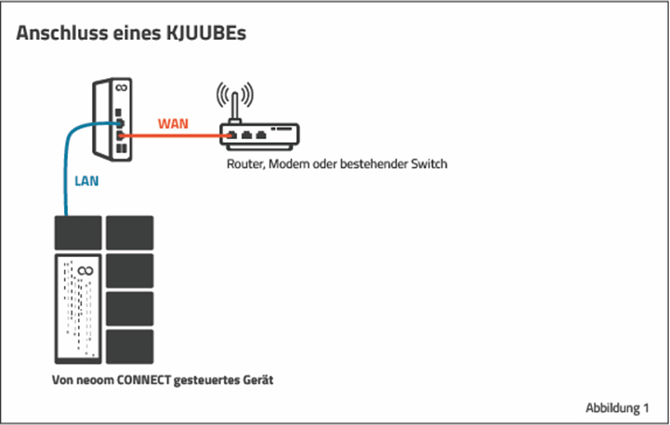
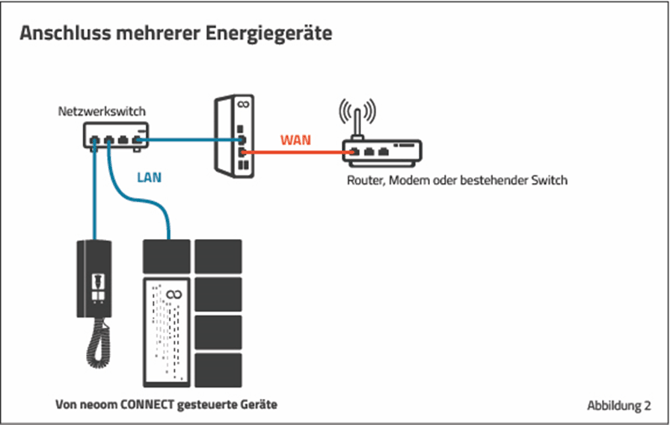
Note: How to connect several energy devices to the BEAAM is explained in the next chapter (see also Figure 2).
Cabling your energy devices to the BEAAM
Connect the first energy device (for example an inverter) so that it matches Figure 1 and carry out the following steps for this device. Repeat these steps for each energy device to be connected. We recommend not connecting all energy devices at once. This makes it easier to assign the IP address allocated by the BEAAM to the newly connected energy device. Reading the IP address is explained in more detail in step 4.
Note 1: Your laptop remains connected to the BEAAM via the switch.
Note 2: With several devices, the devices must be connected to the BEAAM via a switch. The customer needs a switch permanently here.
2. Install the device as described in the respective manufacturer instructions.
ATTENTION: The following guide describes only the necessary network steps and does not replace the steps required by the manufacturer.
 Figure 3: Local BEAAM UI login screen
4. Switch to the "Network overview" ("Netzwerkübersicht") tab to read the IP address of the energy device assigned by the BEAAM (via the integrated DHCP server).
 Figure 4: Network overview with all energy devices connected to the LAN port of the BEAAM.
Note:
- IP addresses with the manufacturer name "....Electronics Technology Co. Ltd." are typically the IP addresses of the inverter.
- For the BEAAM Extension, "Lantronix" appears as the manufacturer.
By default, a DHCP server is now active on the LAN port of the BEAAM and automatically assigns IP addresses to all energy devices. To deactivate the DHCP server, read the "Appendix" under "Deactivate DHCP server".
Note: For a KJUUBE LIGHT UPS, the manufacturer is "Shanghai high-flying electronics technology co., ltd".
This IP address is needed later to add a new device in the site configuration in neoom Ai.
- Repeat steps 2, 3 and 5 for your next device.
- BEAAM commissioning is complete.
TROUBLESHOOTING
- Common causes of errors when an already installed BEAAM suddenly stops working
- Error analysis on the BEAAM
- Outbound ports are not open
- BEAAM does not receive an IP address on the WAN side
- BEAAM does not receive an IP address from Solax inverters
- BEAAM reset
- Deactivate DHCP server on the BEAAM
- Energy devices not found in the network overview
- Cabling devices via the BEAAM WAN port
- Repeater
Common causes of errors when an already installed BEAAM suddenly stops working
BEAAM status display: OFFLINE The gateway at this site is unplugged or not connected to the internet.
Most common causes of errors:
- BEAAM is not powered: Check whether the socket the BEAAM power supply is plugged into is powered. Check whether the power supply plug is fully inserted into the power socket of the BEAAM.
- Problems with network cabling and internet access:
Check whether the network cable is fully plugged into the BEAAM WAN port. If your installer also connected a network cable to the LAN port of the BEAAM during installation, check whether that cable is correctly plugged in as well. With the network cable plugged in, check whether the LEDs next to the network sockets light up or blink. If the LEDs do not light up, check whether the network cables are connected at the other end to your router or switch and whether that device is powered. If the LEDs light up but the BEAAM is still shown as offline, check whether the modem through which the BEAAM is connected to the internet currently has an active internet connection. (You can check this by making sure that other devices also connected to the internet via this modem have internet access.) If the LEDs light up and your modem is connected to the internet, connect to the local user interface on the BEAAM (instructions further below) and check whether the BEAAM has an internet connection.
- A new router was installed: If you recently replaced your internet router, make sure the IP address scheme of the new router has not changed compared to the old router. For diagnosis, also go to the BEAAM administration web page (to do this, enter the IP address of the BEAAM in your home network in the internet browser) For diagnosis, also go to the BEAAM administration web page (see chapter "Error analysis via the local user interface of the BEAAM") If you cannot solve the problem this way, please contact a network technician or the company that installed your neoom storage system.
BEAAM status display: CONNECTING The gateway is not fully connected to the neoom Ai Cloud. The display of energy data and the energy flow visualization on connect.neoom.com and in the neoom App may be delayed, and some functions may be temporarily unavailable. This status is normal when the BEAAM has just been switched on. If this status is shown for longer than 10 minutes, make sure the BEAAM has at least 2 MBit/s of upload and download bandwidth available and that the network cabling from the router to the BEAAM is correct. See also "Run a speed test of your internet connection"
BEAAM status display: UPDATING The gateway is currently performing a software or site configuration update. Depending on your internet connection, this can take about 30 minutes. Please do not disconnect the BEAAM from power or from the network during this time. Your storage system still works during this time. Some functions may be temporarily unavailable. If this status is still shown after 30 minutes, disconnect the BEAAM from power for 1 minute and then plug it back in.
BEAAM status display: WARNING The gateway at this site is currently not fully functional. If this state lasts longer than 2 hours, please contact the neoom Support Team during our business hours.
Error analysis
How to access the local user interface of the BEAAM:
Option 1: You know the WAN IP address of your BEAAM or know how to find it. In this case, open an internet browser and enter the IP address of the BEAAM in the address bar.
Option 2: You do not know the WAN IP address of your BEAAM and do not know how to find it, or option 1 was not successful: Connect your PC or laptop with a network cable (also called LAN cable or RJ45 cable) directly to the LAN port of the BEAAM. Then open an internet browser and enter the IP address 10.10.10.10 in the address bar.
Run a connection test via the local user interface of the BEAAM:
In the local user interface of the BEAAM, click "Start connection test" ("Verbindungstest starten").
The process started this way takes a few seconds. Afterwards you should only see green check marks as in the image below. If that is not the case, the display helps you with error diagnosis. See also the further error analysis points "Outbound ports are not open" and "BEAAM does not receive an IP address on the WAN side".
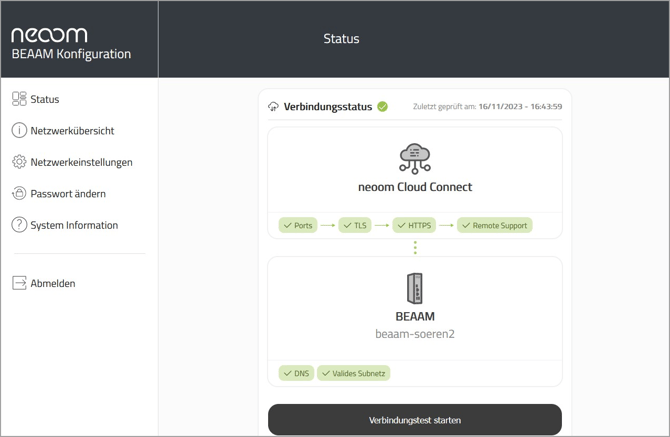 Figure 5: Status of the connection test for identifying problems
Note: If there are problems here, it may also be due to your firewall settings.
Outbound ports are not open
Make sure the BEAAM can reach the following destination ports on the internet: TCP ports: 22, 80, 443, 5671 and UDP port 123, and that these are not blocked by a firewall. To do this, either open another tab in your browser or go to the app prescribed by the manufacturer of your internet router/firewall. Use the instructions of the respective router/firewall manufacturer. Port forwarding must not be activated.
Attention: This step should only be carried out by trained network technicians
Note 1: The BEAAM must not be in the 172.17.0.0 subnet or the 172.18.0.0 subnet.
Note 2: We currently also do not support customer firewalls that use domain/DNS whitelisting, because all domains for the BEAAM must be allowed out to the internet.
BEAAM does not receive an IP address on the WAN side
In the Local BEAAM UI, go to the "Network settings" ("Netzwerkeinstellungen") tab and click the "WAN" tab. Check here whether an IP address has been assigned.
If not, please select "Set IP address statically" ("IP-Adresse statisch festlegen") and assign an IP address that is still available in the address range of your customer router. Also enter the router IP address under "Default gateway" ("Standardgateway").
BEAAM does not receive an IP address from Solax inverters
With a Solax inverter you must make sure that the inverter obtains its IP address automatically, see page 72:
https://neoom.com/hubfs/Produkt_Downloads/KJUUBE%20Light/Handbuch_neoom_KJUUBE_Light_mit_Solax.pdf
If the hybrid inverter is integrated in the internal BEAAM network, see chapter 11.2.6 "Network setup with BEAAM" ("Netzwerkaufbau mit BEAAM"), then "DHCP" can be left as the setting. On the inverter display, the IP address of the inverter is then shown when configuration is correct.
Run a speed test of your internet connection
For the BEAAM to work smoothly, it needs a stable internet connection of at least 2 Mbit/s. The speed test on the local user interface of the BEAAM helps you determine your internet connection speed.
How to reset the BEAAM
We recommend using the RESET function of the BEAAM in the following situations:
- You have forgotten the password for accessing the local user interface of the BEAAM
- You do not know the IP address at which the BEAAM can be reached.
After a BEAAM reset, the BEAAM receives an IP address assigned by the local network via the WAN interface (provided a DHCP server is present in the local network). Use an IP address scanner or the user interface of the router on which the DHCP server is running to find the IP address assigned to the BEAAM.
Despite a RESET, the BEAAM remains assigned to the existing neoom Ai site.
A RESET has no effect on the devices connected to the BEAAM. This configuration is automatically loaded back onto the BEAAM after a RESET.
How to perform the RESET:
- Press the on/off switch of the BEAAM (it is on the side where the BEAAM power supply is connected, all the way to the right) 5 times in a row within 10 seconds.
- Then wait 5 minutes until the BEAAM has restarted and reloaded the configuration.
- Afterwards you can log in again to the local user interface via the browser by entering the IP address assigned to the BEAAM. The default password is 'changeme', which you should change without fail.
Deactivate DHCP server on the BEAAM
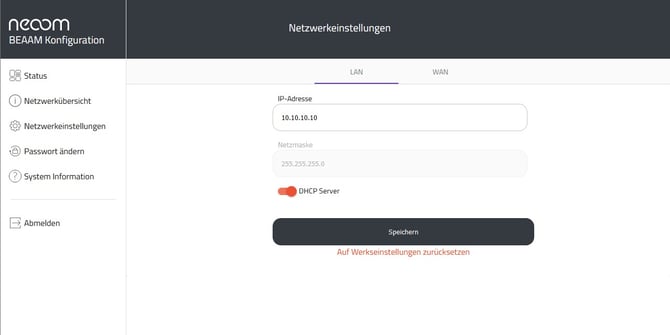
If the customer wants the DHCP server deactivated, you can set this directly in the local user interface of the BEAAM. To do this, go to the "Network settings" tab and switch to the LAN tab. There you can turn off the DHCP server with the slider.
Energy devices not found in the network overview
a. Check whether the energy device is switched on b. Check whether the energy device is configured to obtain a dynamic IP address (via DHCP).
Cabling devices via the BEAAM WAN port
If an energy device at the site cannot be connected to the LAN port of the BEAAM, there is the option to connect the device via the existing customer network.
Attention: We recommend having these steps carried out only by people with network knowledge, because when assigning the BEAAM IP address on the WAN port, the address range of the customer network must be taken into account. Please point this out to the customer again.
a. Connect the energy device with an Ethernet cable via a switch to the LAN interface of your router/modem.
b. Make sure your energy device is powered and switched on
c. Install the device as described in the respective manufacturer instructions
d. Go to the local user interface of the BEAAM and switch to the WAN tab.
e. In the WAN tab, toggle the switch "Allow connection between WAN port and devices" ("Verbindung zwischen WAN-Port und Geräten zulassen") and assign an IP address, e.g. 10.10.11.10.
Attention: This IP address must not be in the same subnet as the BEAAM LAN port or the customer network.
 Figure 6: Connection between WAN port and devices
f. Configure a static IP address on the energy device, e.g. 10.10.11.11, via the local user interface. The address of the default gateway must match the BEAAM WAN IP address you assigned.
Note: On the Solax X3-Hybrid inverter you can make these settings directly on the inverter display.
ATTENTION: For this, your laptop must be connected to the router/modem via LAN cable through the switch.
Repeater
We recommend exclusively the following products: "FRITZ!Repeater 6000" and "FRITZ!Repeater 1200AX". For configuration, follow the next steps:
a. Plug the repeater into a socket near the BEAAM
b. Connect the BEAAM on the WAN side to the FRITZ!Repeater with an Ethernet cable
c. Press the "Connect" button until the LED starts blinking
d. Establish the connection by pressing the "Connect" button for a few seconds (on a FRITZ!Box this is 6 seconds), which triggers WPS
e. If the LED lights continuously, the connection is established. Otherwise you must repeat the two previous steps
More on related topics in these articles:
➜ neoom Ai: requirements for the internet connection – Learn which data rate and bandwidth your site needs to run neoom Ai stably and reliably
➜ Article overview Extensions – Find central guides for the BEAAM Extension, from heat pump control to troubleshooting IP connection problems.
➜ neoom Ai data: calculation, recording, display – Learn how neoom Ai cleans, calculates and visualizes energy data transparently in the dashboard.