
German version of this article can be found here:
https://wissen.neoom.com/funktionsbeschreibung-neoom-app
1. General Information about the neoom App
1.a. What you can do with the app
The neoom App gives you an overview and full control of your energy system at any time. It connects all components of your energy installation and presents important data in a clear, easy-to-understand way.
With the app you can, among other things:
- Monitor your energy production, consumption, and grid feed-in in real time
- Analyze your energy history (day, month, year) and view at any time how much you have produced and consumed in specific past periods
- Participate in energy communities and see how much energy you draw from or feed into the community
- See how much the BEAAM Energy Manager with neoom Ai is currently saving you or has already saved
- View your current and past personal neoom electricity price
- Intelligently control your battery, charging station, heat pump, and heating element
- Make smart use of PV surplus and automatically control devices based on energy availability
- Store your electricity tariffs so that neoom Ai can get the most out of your electricity purchase and feed-in tariffs
- Configure your battery's emergency power reserve
The goal of the app is to help you achieve higher self-consumption, reduce energy costs, and operate your energy system efficiently.
1.b. What neoom Ai does for you
The artificial intelligence of neoom Ai runs on your BEAAM Energy Manager and continuously analyzes your energy system to help you use energy optimally.
It takes into account:
- Production from your PV system
- Current energy consumption
- Battery status
- Electricity prices
- Available PV surplus
- Your device priorities
Based on this, the AI automatically decides, for example:
- When energy is stored
- When devices are activated
- When energy is fed into the grid
- When grid electricity should be purchased
The system works automatically in the background and continuously optimizes your energy setup.
Via the neoom App, you can view how your energy system is being managed by neoom Ai, or disable neoom Ai to operate devices manually. (Please note that manual operation without neoom Ai will always result in lower savings and yields over the course of a year.)
Your neoom Ai benefits:
- Automatically purchases electricity when it's cheap
- Makes optimal use of dynamic energy and grid tariffs
- Sells electricity strategically when prices are high
- Uses energy communities for additional revenue
- Incorporates weather, price, consumption, and generation forecasts
The BEAAM Energy Manager thinks ahead — ensuring your battery keeps working for you even in bad weather, generating income rather than sitting idle.
Your financial advantage:
- Lower electricity costs through intelligent/forecast-based purchasing from the grid and energy community
- Higher feed-in revenue through intelligent/forecast-based feed-in to the grid and energy community
Benefit from AI-based cutting-edge technology
More information about neoom Ai can be found here:
https://wissen.neoom.com/connect-ai-artikeluebersicht
1.c. Which devices support the app
The neoom App is available for smartphones and tablets.
Supported platforms:
- iOS (Apple iPhone and iPad)
- Android smartphones and tablets
You can also access it via your web browser by entering app.neoom.com in the address bar.
1.d. How to log in
To use the app, you need a neoom user account. When your neoom BEAAM Energy Manager was installed, you received an invitation link via email that allowed you to register.
1.e. The 3 main sections of the app
The neoom App is divided into three main sections:
- Energy Management (neoom BEAAM)
- Energy Community (neoom KLUUB)
- Account (Settings)
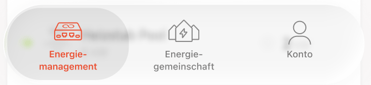
This structure gives you quick access to all key functions.
2. The Energy Management Section (neoom BEAAM)
2.a. The neoom BEAAM Live Overview
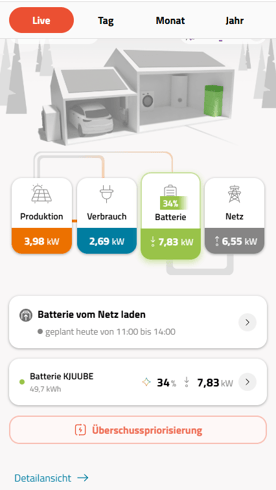
This is the central starting point for your BEAAM energy management.
- Here you can see your current consumption, production, grid feed-in or grid draw, and your battery charge level in real time.
- The animated energy flow display between the Production, Consumption, Battery, and Grid tiles shows you where your energy is flowing at any given moment.
- Tapping on any of the 4 tiles displays further information or setting options.
- Below the energy flow display, you will see notifications when your system is being operated in a special mode (for example, when a grid-based battery charge is planned). These are explained in the following chapters.
- By switching from "Live" to Day, Month, or Year at the top of the screen, you can view your historical energy data for any time period. This is also explained in the following chapters.
2.b. Your personal neoom electricity price
In the Live Overview, you will notice continuously changing figures in the upper right corner. These display — in rotating order — your personal neoom electricity price, your grid purchase price, and your grid feed-in price.
How your personal neoom electricity price is calculated can be found here:
https://wissen.neoom.com/persönlicher-neoom-strompreis
Please note that for an accurate calculation of your personal neoom electricity price, your electricity tariffs must be correctly entered in the app. Instructions on how to do this can be found here.
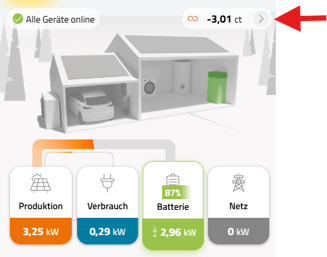
Tapping on the rotating display takes you to a dedicated detail page:
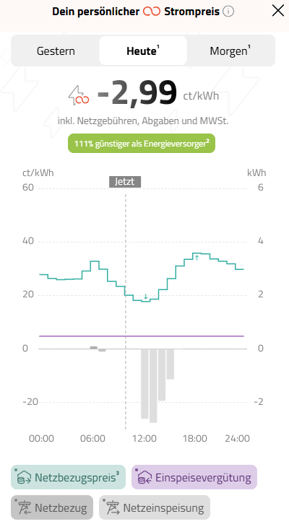
A detailed explanation of this display can be found here:
https://wissen.neoom.com/persönlicher-neoom-strompreis
2.c. Historical overview (day, month, year)
In addition to live data, you can also analyze your historical energy and revenue data. To do so, tap Day, Month, or Year in the menu bar at the top.
Tapping on the date field below Day / Month / Year lets you set a custom time range for which data is displayed.
Your personal neoom electricity price, your savings, your self-sufficiency level, and your CO₂ savings are then shown for the selected period.
The tiles below provide more detailed information on your PV production, consumption, grid draw or feed-in, and battery charge/discharge activity.
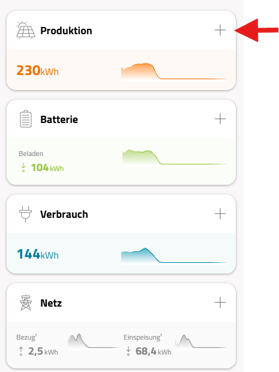
Tapping the "+" symbol on any of the Production, Battery, Consumption, or Grid tiles expands it to show more detailed information.
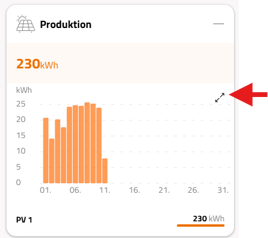
Tapping the two outward-pointing arrows within an expanded tile reveals even more detail.
In the daily view, you also have the option to display a line chart showing power curves and battery charge level over time.
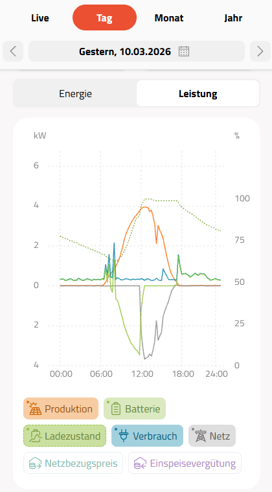
For better clarity, you can show or hide individual lines by tapping the corresponding tile below the chart.
2.d. PV surplus prioritization for your controlled devices
You can define where your generated PV electricity should go first — for example, whether your car should be charged with PV power first, or your home battery, or whether you'd prefer the hot water heating element to be activated first.
To configure this, tap the menu icon in the upper right, then tap "Devices and Surplus Prioritization" at the bottom.
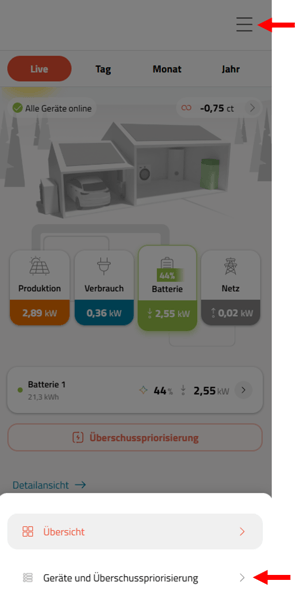
In the "Solar Surplus" tab (sun icon), you can then rearrange the order of your devices by dragging them.
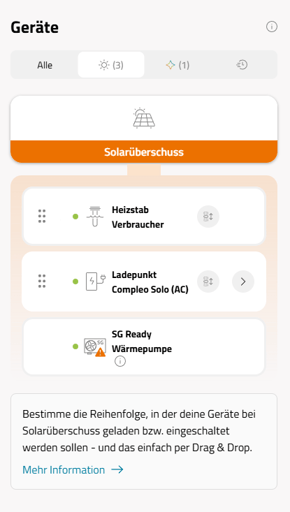
Note: Heat pumps connected via SG-Ready can only be repositioned in the priority order if a dedicated meter measuring heat pump consumption is installed.
2.e. Battery settings
These settings let you define how your battery should behave.
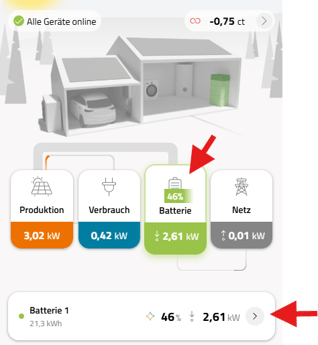
To access them, tap the Battery tile in the Live Overview and then tap the arrow to the right in the battery section below.
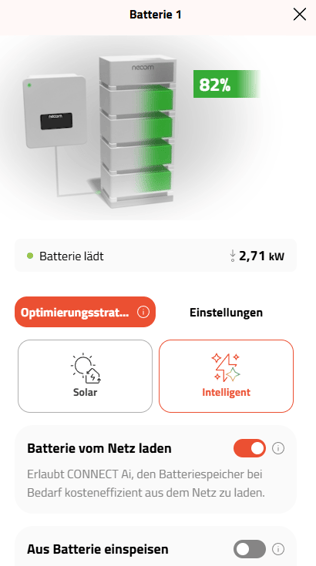
Under "Optimization strategy", you can specify whether your battery should only be charged with PV electricity (Solar), or whether it should be operated intelligently. If the "Intelligent" optimization strategy is selected, neoom Ai takes control of the battery.
Further details can be found in these articles:
- Charging battery from the grid: https://wissen.neoom.com/connect-mit-griid-usecase-preisoptimiertes-laden-der-batterie-aus-dem-netz-zu-dynamischen-tarifen
- Feeding from battery into the grid: https://wissen.neoom.com/intelligente-einspeisung-mit-connect-ai
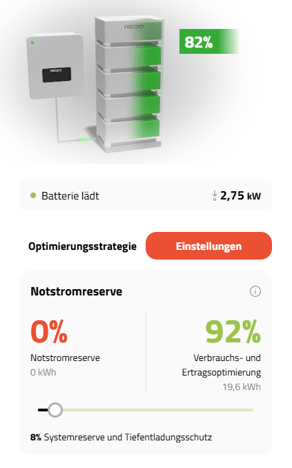
Under "Settings", you can define how much energy should always be kept in reserve in your battery in case of a power outage.
Please note that the higher you set the emergency power reserve, the less room neoom Ai has for cost and revenue optimization — but in return, you'll have power available during an outage.
2.f. Charging station settings
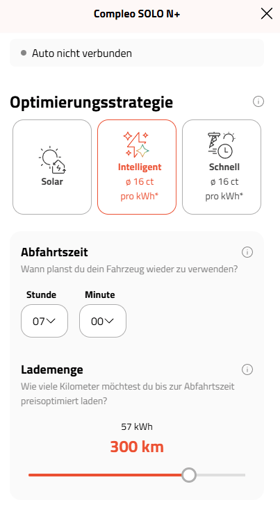
These settings let you define how you want to charge your car.
To access them, tap the "Consumers" tile in the Live Overview, then tap your charging station below.
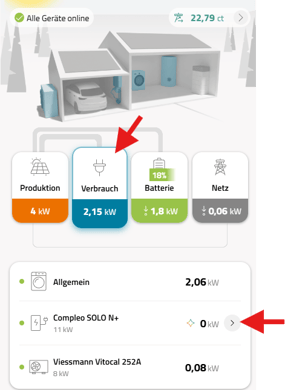
Under "Optimization strategy", you can specify whether your car should only be charged with PV electricity (Solar), whether it should be charged as fast as possible (at maximum power, regardless of PV availability or current grid electricity price), or whether charging should be managed intelligently. If the "Intelligent" optimization strategy is selected, neoom Ai controls the charging process.
More detailed information can be found here:
https://wissen.neoom.com/preisoptimiertes-autoladen-mit-griid-und-connect-ai
2.g. Grid feed-in prioritization
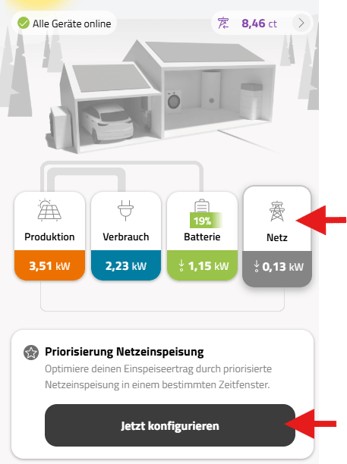
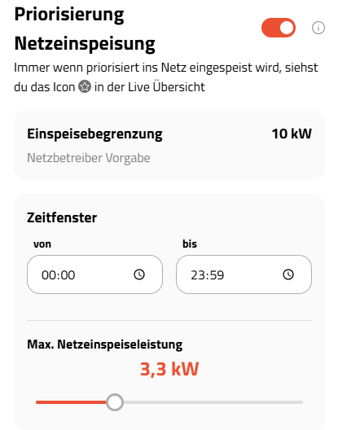
This setting lets you define a time window during which you prefer to feed your generated PV electricity into the grid rather than charge your battery.
Why this can be beneficial and how it works in detail is explained in the following article:
https://wissen.neoom.com/preisoptimiertes-autoladen-mit-griid-und-connect-ai
To configure prioritized grid feed-in, tap the "Grid" tile in the Live Overview and then tap "Configure now" below.
Settings for prioritized grid feed-in:
A detailed explanation of this feature can be found here:
https://wissen.neoom.com/preisoptimiertes-autoladen-mit-griid-und-connect-ai
3. The Energy Community Section (neoom KLUUB)
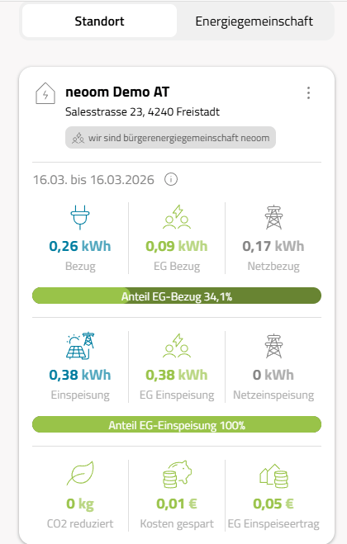
If you are already a member of a neoom KLUUB, you will see an overview of your draw from and feed-in to the energy community in the "Location" tab:
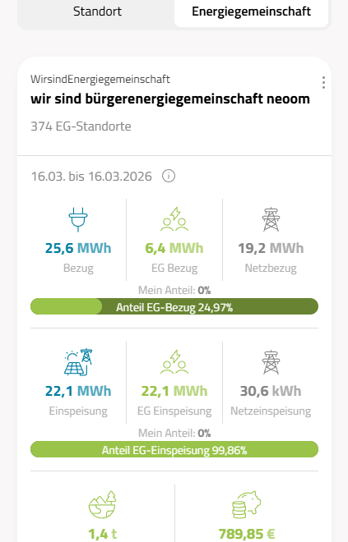
In the "Energy Community" tab, you get an overview of the entire energy community — showing the combined draw and feed-in of all participants:
Information on how to become a member of a neoom KLUUB energy community, how an energy community works, and what benefits it offers can be found here:
https://wissen.neoom.com/neoom-kluub#main-content
4. The Account Section (Settings)
4.a. Managing your energy management subscription
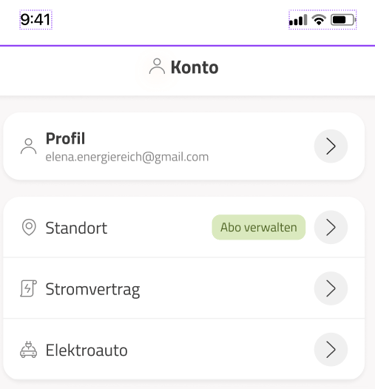
Some energy management features require a subscription, which you can purchase and manage under "Location".
To find out which features are available with a subscription, visit:
https://neoom.com/produkte/connect/pricing
4.b. Configuring your electricity tariff contracts
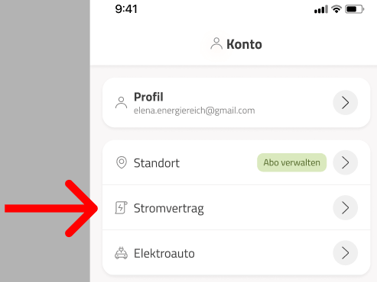
For the neoom BEAAM Energy Manager to correctly perform optimizations and calculate savings and revenues, it is important that you correctly enter your electricity contracts (for grid purchase and grid feed-in).
To do this, tap "Electricity contract" in the Account section and follow the instructions in the app.
If you have general questions about electricity contracts, this article will help:
https://wissen.neoom.com/verwaltung-stromvertraege-neoom-app
4.c. Configuring your electric vehicle
In the "Electric Vehicle" section, you can configure settings that are important for the neoom BEAAM Energy Manager to correctly optimize the charging process for your car.
You can store multiple electric vehicles here and select the appropriate car in the charging station settings.
5. Adding new devices to be controlled by the neoom BEAAM Energy Manager
- Go to https://neoom.com/neoom-connect-geraete and check whether the device you want to control is supported by the neoom BEAAM Energy Manager.
- If you find the device in the list, tap on it to see which functions the BEAAM Energy Manager supports for that device.
The feature overview on the detail page looks like this for charging stations, for example: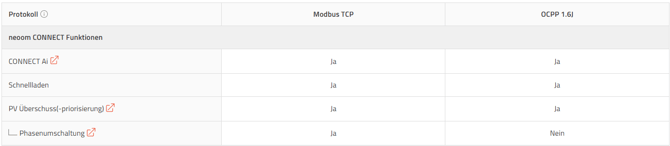
And like this for inverters: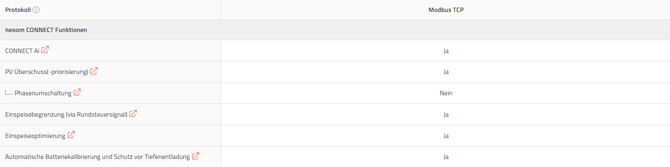
- Make sure your device is connected to your home network (LAN).
- Contact the installer who set up your neoom BEAAM. They can also configure the device in the neoom BEAAM Energy Manager remotely.
- Provide the installer with the IP address of the device to be configured and its exact model designation — this allows the configuration to be completed quickly.
6. Stay up to date on changes in the neoom App
We continuously develop the neoom App. You can see what has changed here:
https://wissen.neoom.com/changelog-neoom-app