
All activities described here may only be carried out by qualified electricians.
Before you begin, please check whether the heat pump is SG Ready compatible and whether it carries the SG Ready label.

You can usually find this information on the heat pump manufacturer's website or through the manufacturer's support.
What is SG Ready
Smart Grid Ready (SG Ready) heat pumps can be integrated into the neoom energy management system. This is done by connecting the heat pump to the neoom BEAAM Gateway extended with a BEAAM Extension.
The neoom BEAAM is a gateway that connects the controllable loads to neoom energy management. neoom Ai, the control logic on the required BEAAM, then gives an SG Ready heat pump a switch-on recommendation based on PV surplus, in order to optimize self-consumption of the PV power you generate yourself.
Smart Grid Ready operating modes
SG Ready heat pumps have four controllable operating modes that can be actively controlled. The neoom EMS enables active switching between operating states 2 and 3, depending on the available PV surplus. Switching is done via the BEAAM Extension. Operating modes 1 and 4 are not used by the EMS for now, but are prepared in hardware for use of the heat pump.
Operating state 2: Normal operation
In this switching state, the heat pump runs in normal operation.
Operating state 3: Enhanced operation (switch-on recommendation)
In this operating state, the heat pump works within its own control in enhanced mode for domestic hot water and/or space heating. To activate this operating state, the external relay for controlling the heat pump is closed and passes the recommendation on to the heat pump (command = 4).
Please make sure that the heat pump to be installed supports Smart Grid Ready operating states 2 and 3.
Dynamic operating mode control at neoom
neoom energy management switches dynamically between the operating modes based on the PV surplus measured at the grid connection point.
When the user-defined switch-on threshold is available at the grid feed-in point, the system switches from operating mode 2 to 3.
When the switch-off threshold at the grid feed-in point is undershot, the system switches back from operating mode 3 to 2, provided the minimum run time has been reached. The defined minimum run time and a switching pause of 15 minutes are observed.
Wiring the BEAAM Extension
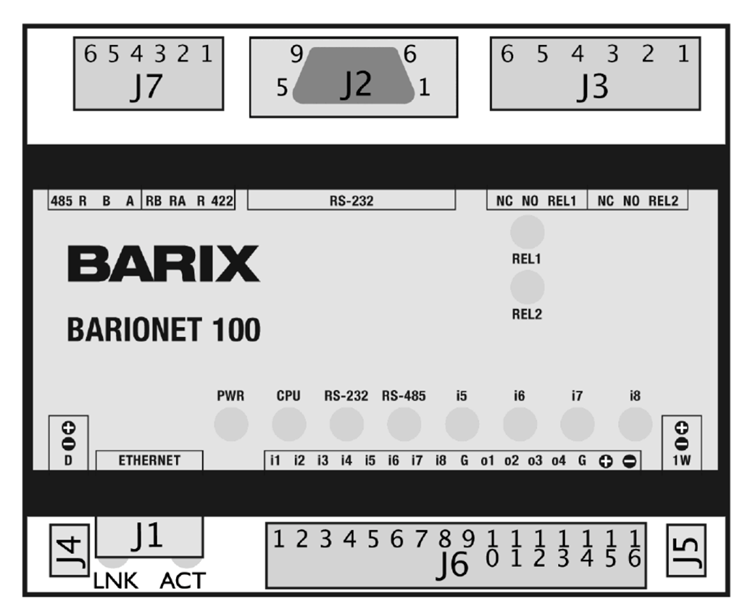
Required components
 |
 |
|
|---|
- neoom BEAAM: 12 V power supply
- neoom BEAAM Extension: 9 V - 30 V power supply
- SG Ready heat pump
The BEAAM Extension can be operated with a voltage of 9 volts to 30 volts DC and consumes a maximum of 4 watts from the power supply. Voltages outside these limits can cause damage. A suitable external power supply is not included in the scope of delivery, but can be obtained from neoom.
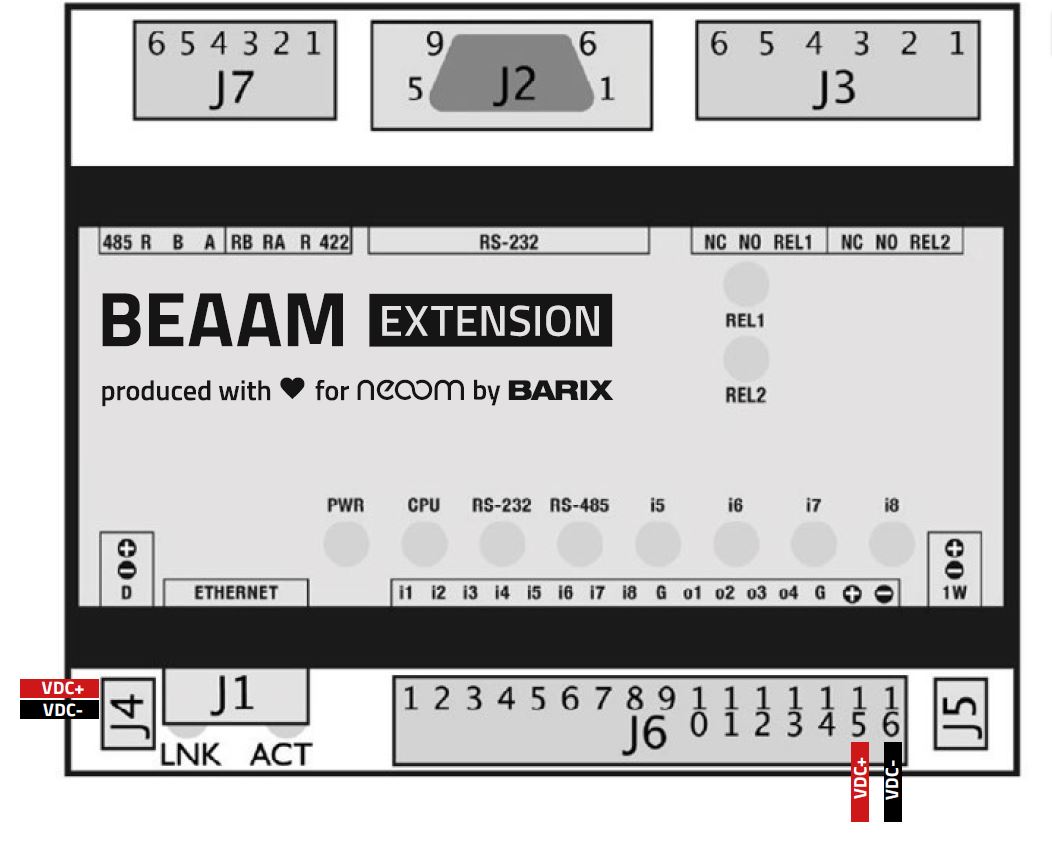
The BEAAM Extension should be supplied with voltage at pin 15 (VDC+) and pin 16 (VDC-) of connector J6, as shown in the following figure (option 1).
Alternatively, the voltage supply can also be provided via pin 1 (VDC+) and pin 2 (VDC-) of connector J4, as shown in the following figure (option 2). For wiring at connector J4, use the supplied 3-pin cable.
For the Modbus TCP connection between the BEAAM and the BEAAM Extension, use a network cable (at least CAT.6) to connect the J1 port of the BEAAM Extension to a free port on the network switch of the local network.
Integrating the BEAAM Extension into the IP network at the customer site
The BEAAM Extension must be in the same IP network as the neoom BEAAM and must be connected to the BEAAM via Ethernet.
The BEAAM automatically assigns an IP address to the BEAAM Extension that does not change after a restart of the BEAAM or the BEAAM Extension.
The network address assigned to the BEAAM Extension can be viewed in the "Network overview" on the local BEAAM web server. See also the "Guide to BEAAM commissioning" at https://wissen.neoom.com/anleitung-zur-beaam-inbetriebnahme
The left LED on the J1 port indicates a connection to the network.
The right LED indicates activity on the network port.
Testing the relay outputs using the BEAAM Extension web interface
Open your web browser, enter the IP address of the BEAAM Extension (Barionet) and press Enter.
Carry out the following steps to test the relay outputs:
- After wiring the BEAAM Extension to the heat pump, you can switch the relay contacts using the web interface and thus test them.
- In the "HOME" view of the adapter, you can switch the relay outputs by clicking the marked buttons.
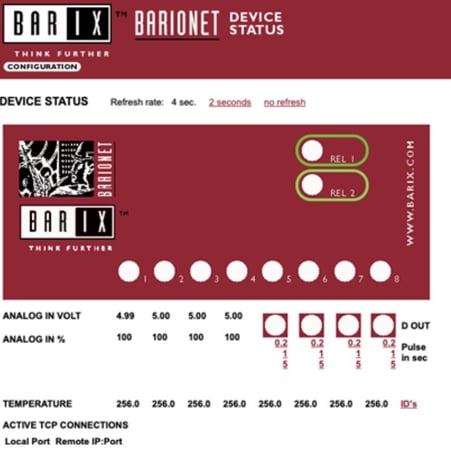
- Once the relay output has been activated using the button, you can check the activated output in the web interface and on the indicator lights of the relay outputs directly on the adapter. In addition, you can use a multimeter to check the switched reference voltage at the heat pump input.
- After checking, the relay outputs should be switched back to "OFF".
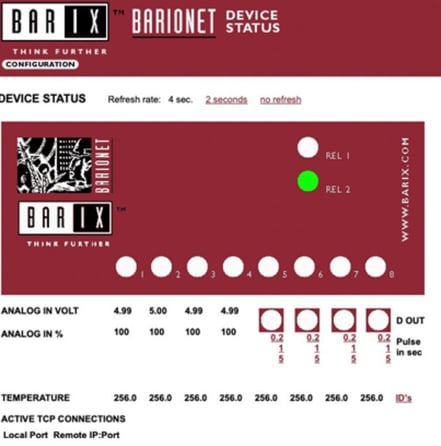
Display of the SG Ready operating states at the J3 outputs of the BEAAM Extension
SG Ready 1.0 heat pumps:
| SG Ready operating state | State of output Relay1 (J3 pin 4 & 5) | State of output Relay2 (J3 pin 1 & 2) | Note |
|---|---|---|---|
| Operating state 1 "Utility lockout (EVU-Sperre)" | 1 - Contact closed | 0 - Contact open | Set when a §14a signal is active |
| Operating state 2 "Normal operation" | 0 - Contact open | 0 - Contact open | |
| Operating state 3 "Switch-on recommendation" | 0 - Contact open | 1 - Contact closed | |
| Operating state 4 "Start command (Anlaufbefehl)" | 1 - Contact closed | 1 - Contact closed | Currently not supported |
SG Ready 1.1 heat pumps:
| SG Ready operating state | State of output Relay1 (J3 pin 4 & 5) | State of output Relay2 (J3 pin 1 & 2) | Note |
|---|---|---|---|
| Operating state 1 "Power limitation (Leistungsbegrenzung)" | 1 - Contact closed | don't care | Set when a §14a signal is active |
| Operating state 2 "Normal operation" | 0 - Contact open | 0 - Contact open | |
| Operating state 3 "Switch-on recommendation" | 0 - Contact open | 1 - Contact closed |
Pin assignment on port J3 of the BEAAM Extension:
| Pin | Description |
|---|---|
| J3-1 | Relay 1 – relay common (root) |
| J3-2 | Relay 1 – relay normally open contact |
| J3-4 | Relay 2 – relay common (root) |
| J3-5 | Relay 2 – relay normally open contact |
The wiring at the heat pump inputs with the BEAAM Extension relay outputs Relay 1 (pin 4 & 5) and Relay 2 (pin 1 & 2) must be taken from the heat pump manual and must be implemented individually depending on the design of the inputs on the heat pump.
The BEAAM Extension provides a potential-free contact at each relay.
Note: Please follow the heat pump manufacturer's instructions carefully to prevent damage to the device. neoom is not liable for damage to third-party devices caused by incorrect installation.
Please note that the heat pump must be connected so that hardware support for all operating states is prepared.
Integration into neoom Ai
If you prefer to watch the guide as a video, you can find the corresponding video guide here.
Configuring the BEAAM Extension
In the neoom web interface of your site, the BEAAM adapter that is correctly wired to the heat pump must be configured as a component via "Add extension":
In the "Extensions" tab of the site configuration of your neoom site, you can configure the BEAAM Extension:
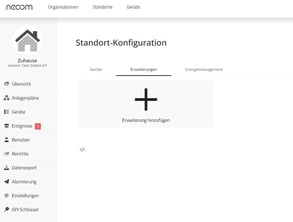
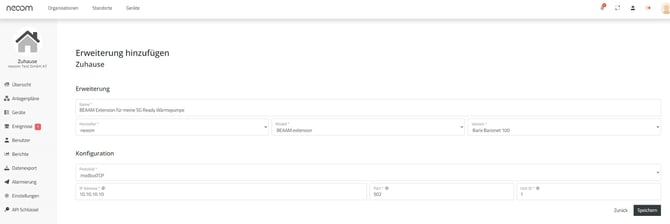
You can assign any name to the extension. To connect an SG Ready heat pump, the following device selection is required:
- "Manufacturer": neoom
- "Model": BEAAM extension
- "Version": Barix Barionett 100
The IP address must match the static IP address from the previous section. Once you have made all settings, you can apply them with "Save". Further control is then handled by the neoom EMS.
The neoom software is continuously improved and extended with new functionality, so the screenshots shown may differ slightly from newer versions.
Configuring the SG Ready heat pump in neoom Ai
After the BEAAM Extension has been successfully added in the neoom web interface of your site, you can configure the heat pump.
You have 3 options for creating an SG Ready heat pump in neoom Ai:
- Option 1: SG Ready heat pump without an associated energy meter that measures the energy consumption of the heat pump.
- Option 2: SG Ready heat pump with an associated energy meter that measures the energy consumption of the heat pump. (The benefit of option 2 is described in the FAQ section of this document "Do I always need to install a dedicated meter for the heat pump?")
- Option 3: SG Ready heat pump where the energy values are not measured by a meter, but are read by neoom Ai directly from the heat pump via Modbus. (Please check the compatibility list at https://neoom.com/neoom-ai-geraete to see whether the heat pump is integrated in neoom Ai for "Read energy data" via "Modbus TCP".)
Option 1: SG Ready heat pump without an associated energy meter that measures the energy consumption of the heat pump:
In the "Products and devices" tab of the site configuration (1) of your neoom site, you can add the heat pump (2): 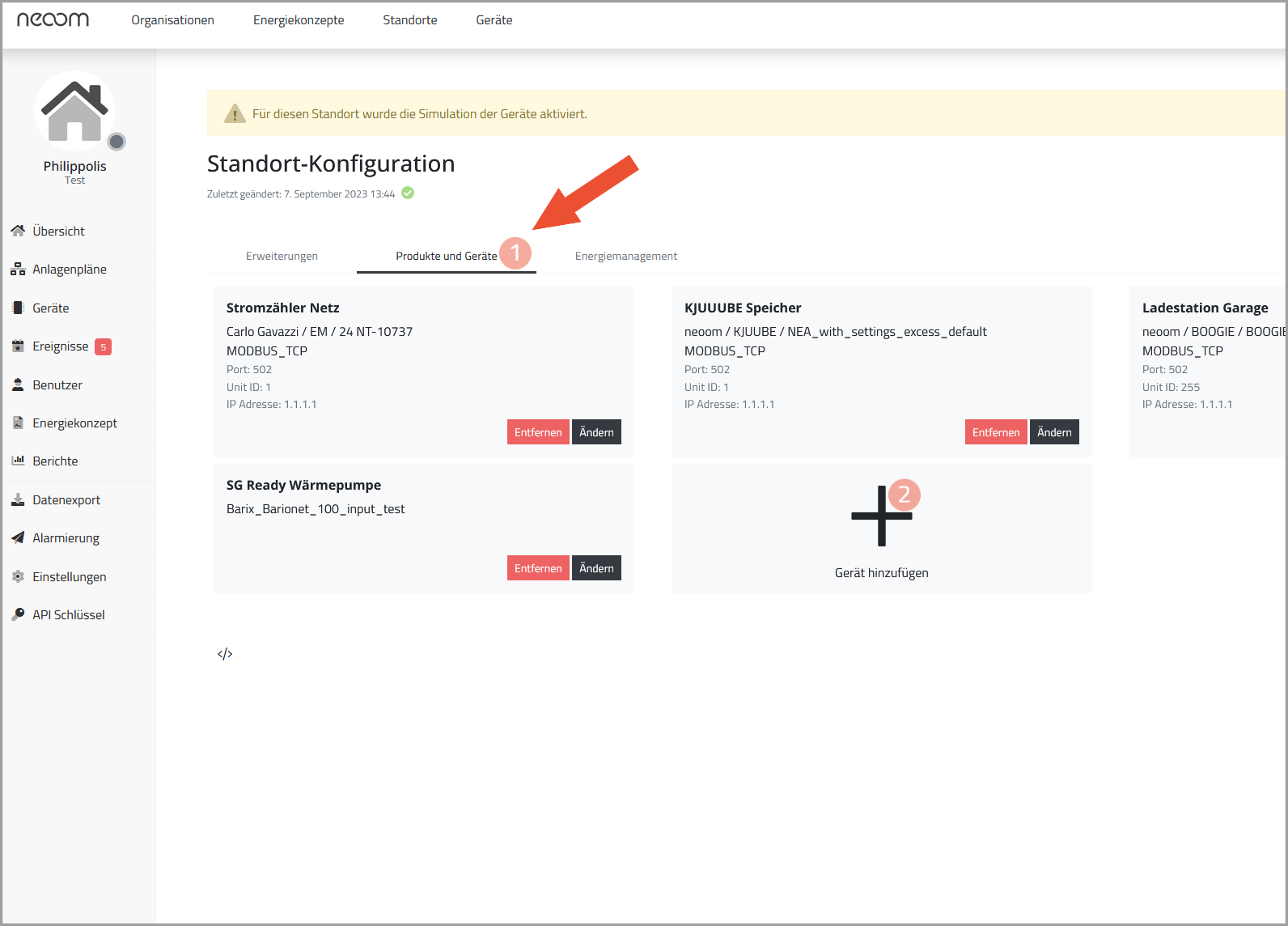
For the device, you can choose any name (1), followed by selecting a "Manufacturer" (2). It is important to select "Generic" here. For "Model" and "Version", select "Heat Pump" in each case. For "Protocol", select "Local api HTTP". Under "Components", select the previously added BEAAM Extension from the dropdown menu under "Connect to extension" and enter the maximum electrical power of the heat pump.
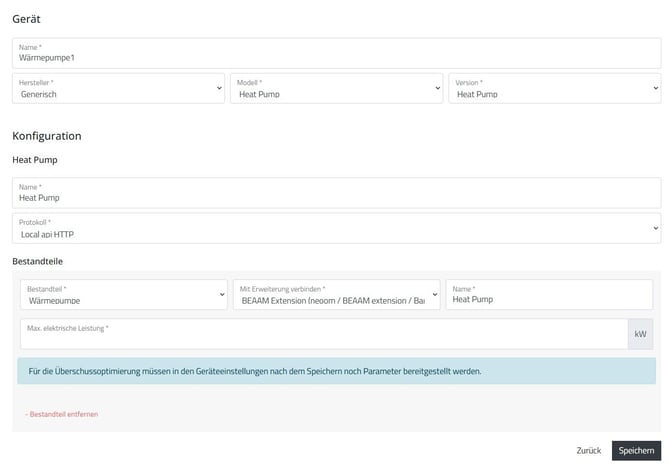
To supply the heat pump with surplus power, it must still be configured additionally.
In the "Control" tab of the heat pump, you must select the EMS operating mode "Surplus prioritized" (1) and set the power threshold for the switch-on recommendation (2) as well as for normal operation (3) of the heat pump: 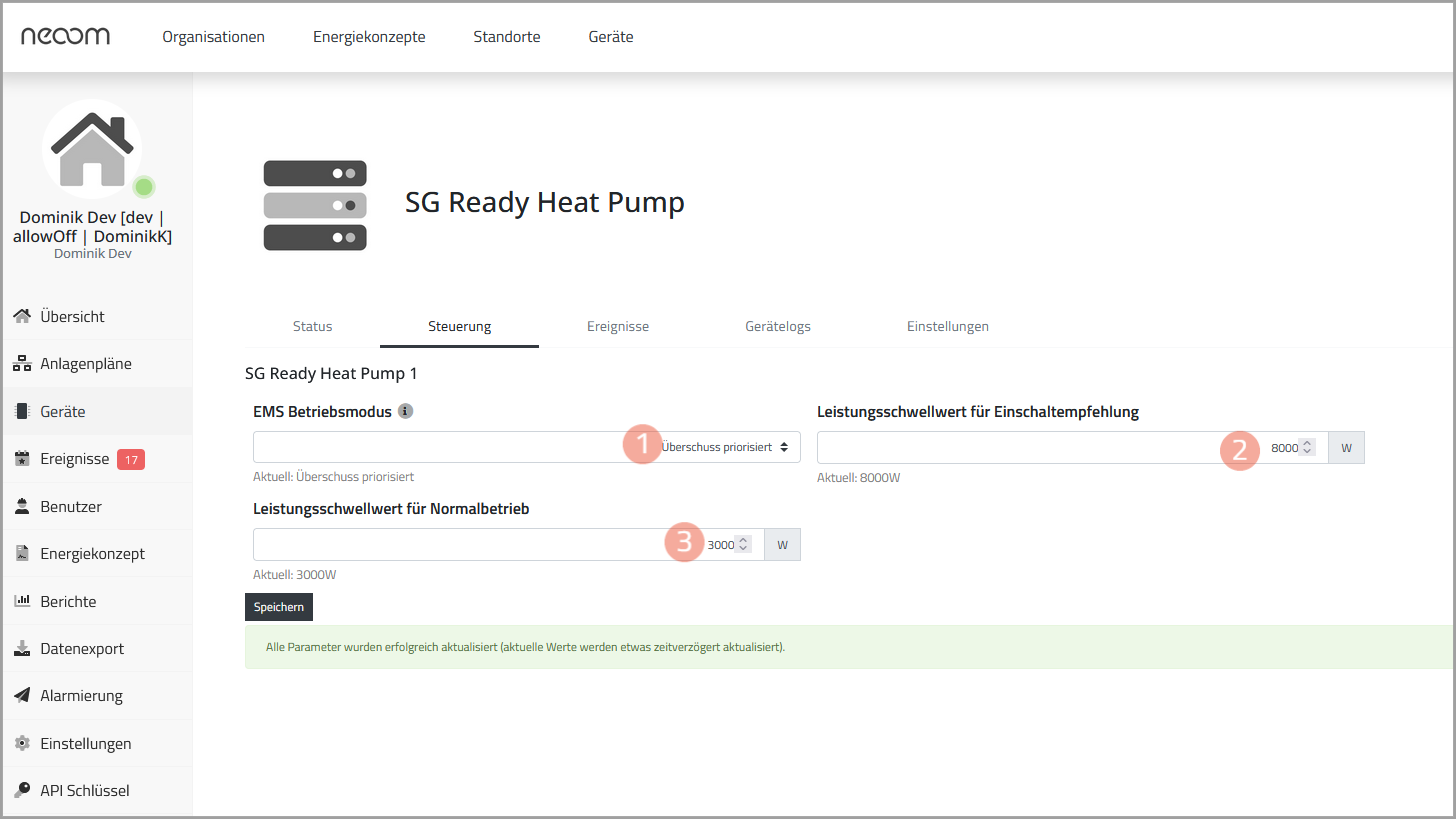
Attention: The heat pump can only be supplied with your PV surplus if the power threshold has been set.
Option 2: SG Ready heat pump with an associated energy meter that measures the energy consumption of the heat pump.
In the "Devices" tab (1) of the site configuration of your neoom site, you can add the energy meter for your heat pump (2): 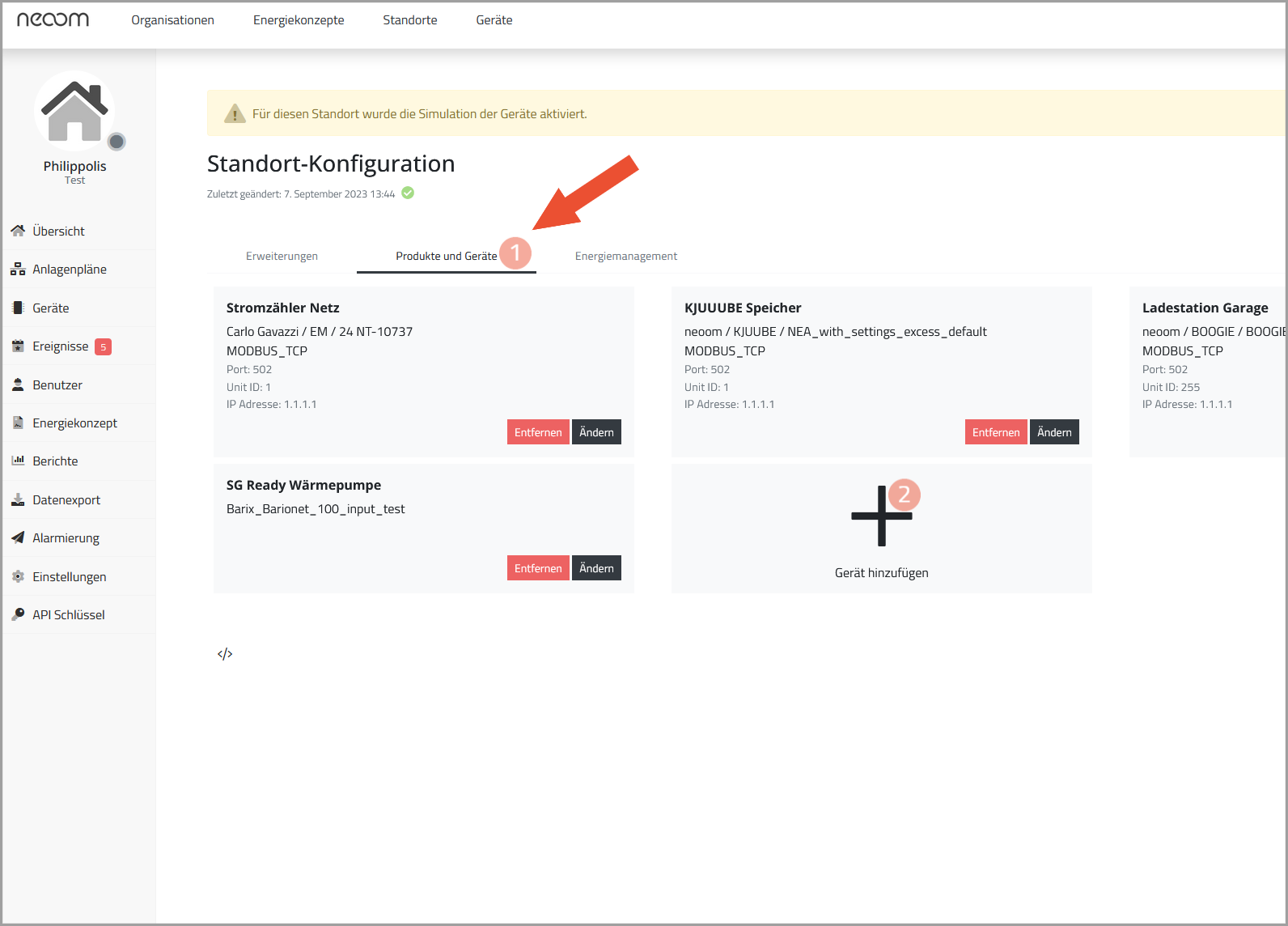
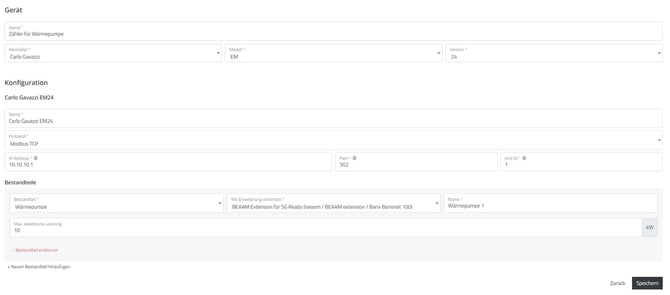
For the device (meter), you can choose any name, followed by selecting a manufacturer, model and version. Under Configuration, take the information needed for the IP address from your router, or check it with your network administrator if you do not have access to the router. See also further up under network configuration.
Finally, you must still add the heat pump as a component. To do this, select "Add new component" and choose "Heat pump" from the "Component" dropdown menu. Under "Connect to extension", select the BEAAM Extension that is connected to the heat pump, and enter the maximum electrical power of the heat pump.
Option 3: SG Ready heat pump where the energy values are not measured by a meter, but are read by neoom Ai directly from the heat pump via Modbus
Please first check the compatibility list at https://neoom.com/neoom-ai-geraete to see whether the heat pump is integrated in neoom Ai for "Read energy data" via "Modbus TCP".
In the site configuration, select "Add device" as described for option 2.
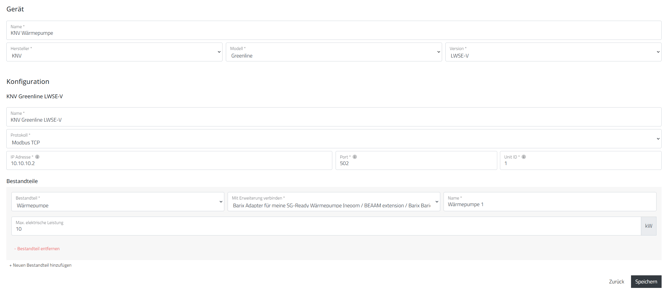
Create the corresponding heat pump as a new device as shown in the screenshot below. Under "Components", select the component "Heat pump" and connect the heat pump to the BEAAM Extension that is wired to the heat pump by selecting the BEAAM Extension under "Connect to extension". Then also enter the maximum electrical power of the heat pump.
Frequently asked questions - FAQs:
The BEAAM Extension does not switch the operating mode, even though surplus is available or is no longer available
To prevent frequent switching of the operating mode, a change of operating mode takes place no earlier than 15 minutes after switching into the current operating mode.
If the operating mode is still not switched even after 15 minutes, check the power thresholds set for the heat pump in the device configuration of neoom Ai (NAVI) and make sure in the neoom App that the heat pump is surplus-prioritized accordingly in the surplus prioritization list.
Do I always need to install a dedicated meter for the heat pump?
A dedicated meter for the SG Ready heat pump is recommended, but not strictly necessary. If no meter is installed, a heat pump cannot be moved in the surplus prioritization list of the neoom App, but is always at the last position in the surplus prioritization list. A heat pump without a meter therefore always has the lowest priority in surplus prioritization compared to all other devices controlled by neoom Ai.
In addition, in the neoom Ai UI (detail view), the energy and power values for the heat pump (graphical display as well as "Electrical power consumption" and "Electrical energy consumed") are not shown if no meter is installed.
As an alternative to a dedicated meter for the heat pump, neoom Ai can, for certain heat pumps, read the power values directly from the heat pump via Modbus TCP. (See the description of "Option 3" above.) Please first check the compatibility list at https://neoom.com/neoom-ai-geraete to see whether the heat pump is integrated in neoom Ai for "Read energy data" via "Modbus TCP".
Where can you see the meter configured for the heat pump in neoom Ai (detail view)? Is the meter visible as its own device or as a component of the heat pump?
Indirectly: In the neoom Ai detail view in the device configuration under "Heat pump" - "Status", values for "Electrical energy (consumed)" are displayed. Directly: In the neoom Ai detail view, in the device overview click "Configure site". A meter installed for the heat pump should appear there.
Why can I add a PV system as a component of the heat pump or of the heat pump meter?
This is currently offered by the UI, but it does not make sense and should not be configured. In one of the next versions there will be an update where this will no longer be possible in the UI.
How does surplus control work to give a heat pump an SG Ready signal for a switch-on recommendation:
neoom Ai measures the grid meter value, PV production and the consumption of all devices controlled by neoom Ai and all devices not controlled by neoom Ai (so-called residual consumption) every 5 seconds.
If the PV surplus (i.e. the power value at the grid meter) is greater than the value "Power threshold for switch-on recommendation" set for the heat pump in neoom Ai, neoom Ai sends a signal for the switch-on recommendation to the heat pump via the BEAAM Extension. This signal remains active for at least 15 minutes, even if the surplus measured by neoom Ai falls below the values "Power threshold for switch-on recommendation" or "Power threshold for normal operation" within those 15 minutes. Once 15 minutes have passed, the SG Ready switch-on recommendation remains active until the value "Power threshold for normal operation" set for the heat pump in neoom Ai is reached or undershot. It is recommended to set the "Power threshold for normal operation" at least by the average power consumption of the heat pump lower than the value "Power threshold for switch-on recommendation", so that with constant household consumption and constant PV production the heat pump is not switched off again every 15 minutes.
Can I also control more than one heat pump at a site via neoom Ai and SG Ready?
Currently only one BEAAM Extension can be operated per site, which also limits the number of heat pumps controllable with SG Ready to 1.
In this article we explain how you can prioritize the integrated heat pump in the neoom App.
More on related topics in these articles:
➜ SG Ready heat pump – integration into neoom Ai (video guide) – see in two videos how to integrate your heat pump into neoom Ai easily via BEAAM or an energy meter.
➜ Energy and charging management – learn how neoom Ai optimizes your charging with dynamic control, PV surplus use and flexible charging strategies.
➜ PV surplus prioritization – learn how to set in the neoom App by drag and drop which devices are supplied with surplus PV power first.
➜ Energy management: FAQs – find answers to common questions about device control, PV optimization and troubleshooting in neoom Ai energy management.